
Triage Categories
When a workflow run fails, Nota AI automatically analyzes the failure and assigns it to one of six triage categories. This helps your team focus on real bugs instead of spending time manually investigating every failure. For failed runs, you can also use the Prompt Optimizer to automatically analyze and improve the workflow prompt.How It Works
After a run completes with a failure, the triage agent examines the error context — including screenshots, logs, and the test steps — and classifies the failure into one of the categories below. Each classification includes a confidence score so you know how reliable the assessment is.The Six Categories
Confidence Tiers
Each triage assignment includes a confidence score displayed as a colored bar:- High (85%+) — Green bar, solid border. The agent is confident in its classification.
- Medium (70–85%) — Amber bar, solid border. Likely correct but worth a quick review.
- Low (below 70%) — Red bar, dashed border. Manual review recommended.
Where Triage Appears in the UI
Sidebar — Workflow Group Dots
In the Run History sidebar, each workflow group displays small color-coded dots representing the triage breakdown of its failed runs. This gives you a quick visual summary without opening individual runs.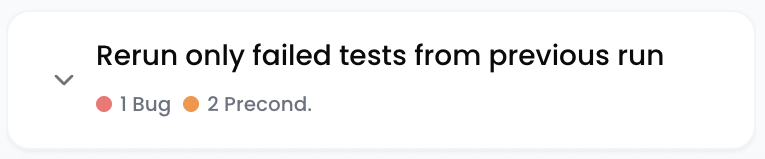
Sidebar — Triage Category Filter
The sidebar filters panel includes a Triage Category dropdown. Select one or more categories to narrow down the visible runs — for example, show only “Real Bug” failures to focus on genuine defects.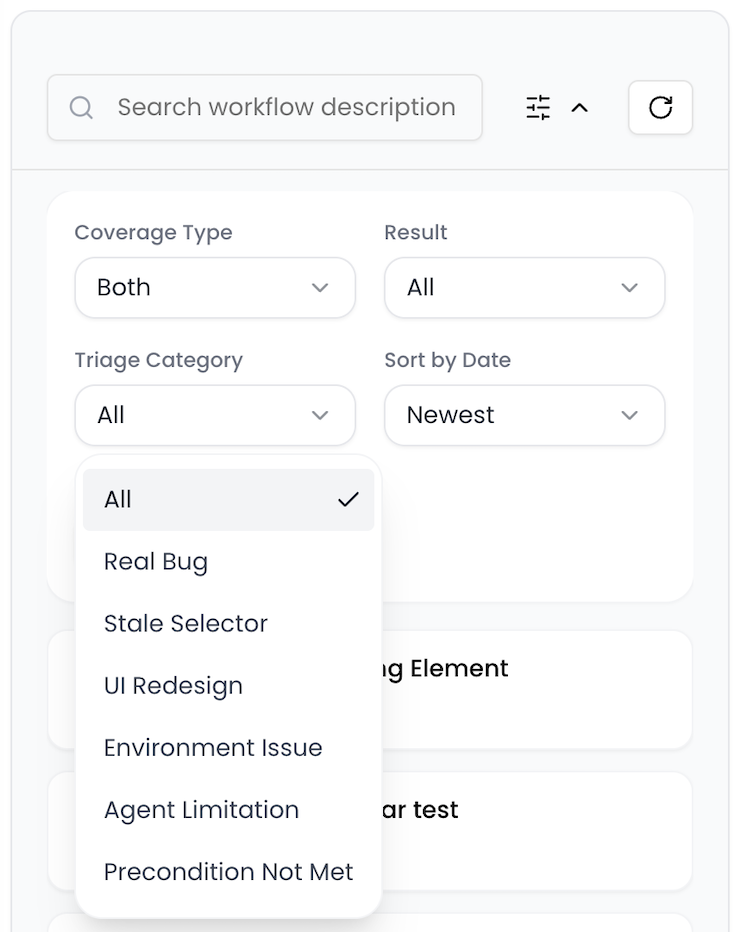
Run Items — Triage Badge
Individual run items in the artifacts list display a triage category badge with the category name and confidence indicator.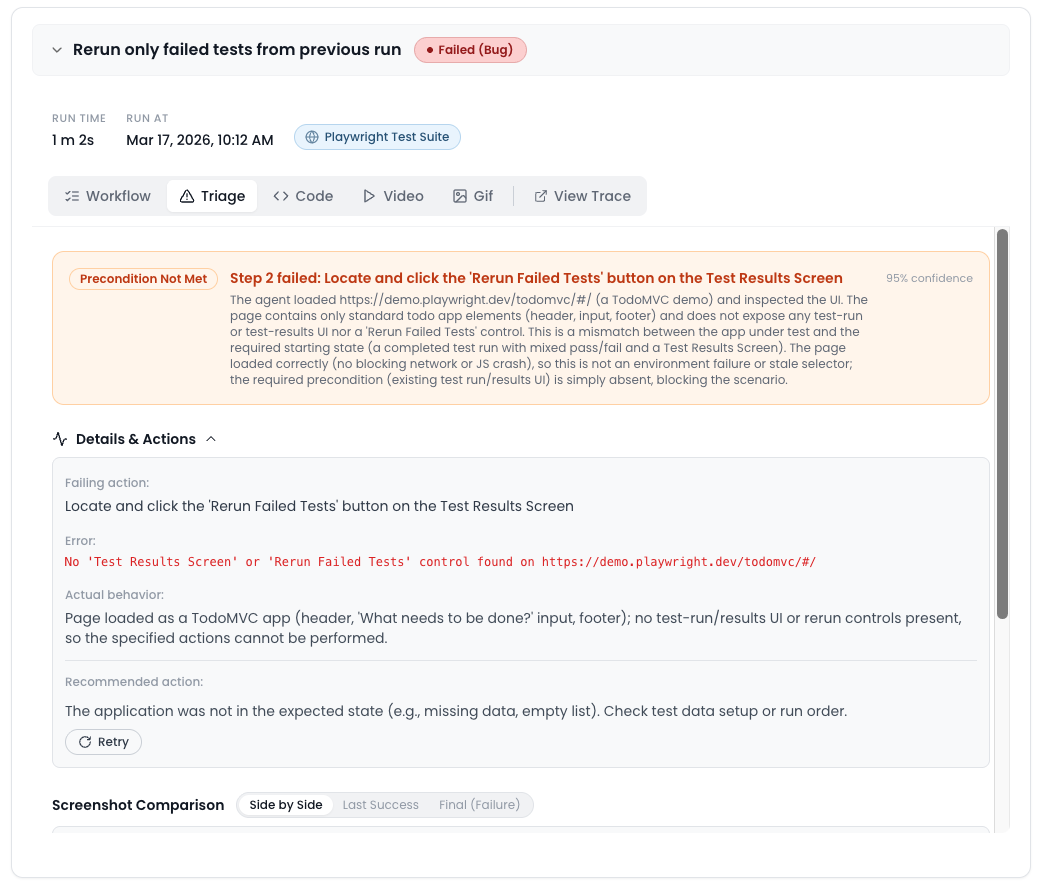
Result Status Types
Runs now have four possible result statuses that work alongside triage categories:- Passed — The workflow completed successfully.
- Failed — The workflow failed (may have a triage category assigned).
- Failed (Bug) — The workflow failed and was triaged as a Real Bug.
- Env Failure — The workflow failed due to an environment issue.
Notification Emails
When scheduled runs complete, notification emails include a Triage Breakdown section showing the count of Real Bugs and Environment Failures, helping you prioritize which failures need immediate attention.Quick Actions
Some triage categories offer quick actions to help you resolve the issue faster:- Real Bug — “Copy Bug Report” generates a summary with error details you can paste into your issue tracker.
- Stale Selector — “Accept Healed Prompt” applies the suggested prompt update to match the new element.
- Environment Issue / Precondition Not Met — “Retry” re-runs the workflow.
Analyze Prompt
All failed runs — regardless of triage category — display an “Analyze Prompt” button (✦ sparkle icon) in the run metadata bar. Clicking it launches the Prompt Optimizer, which reviews the workflow prompt in light of the failure context and suggests improvements.
💡 The Prompt Optimizer is especially useful for Agent Limitation and Precondition Not Met failures, where rewording or restructuring the prompt can resolve the issue without code changes.