

Agent Settings
Agent Settings centralizes the runtime rules your agents follow during execution, from visual validation to retry logic. Use these controls to keep runs consistent across environments and team members.Visual Check
Enable Visual Check to analyze screenshots captured during a run. This adds a UI-level validation pass that flags unexpected visual changes, layout shifts, and missing UI states. Use it when you want fast feedback on UI regressions alongside functional steps.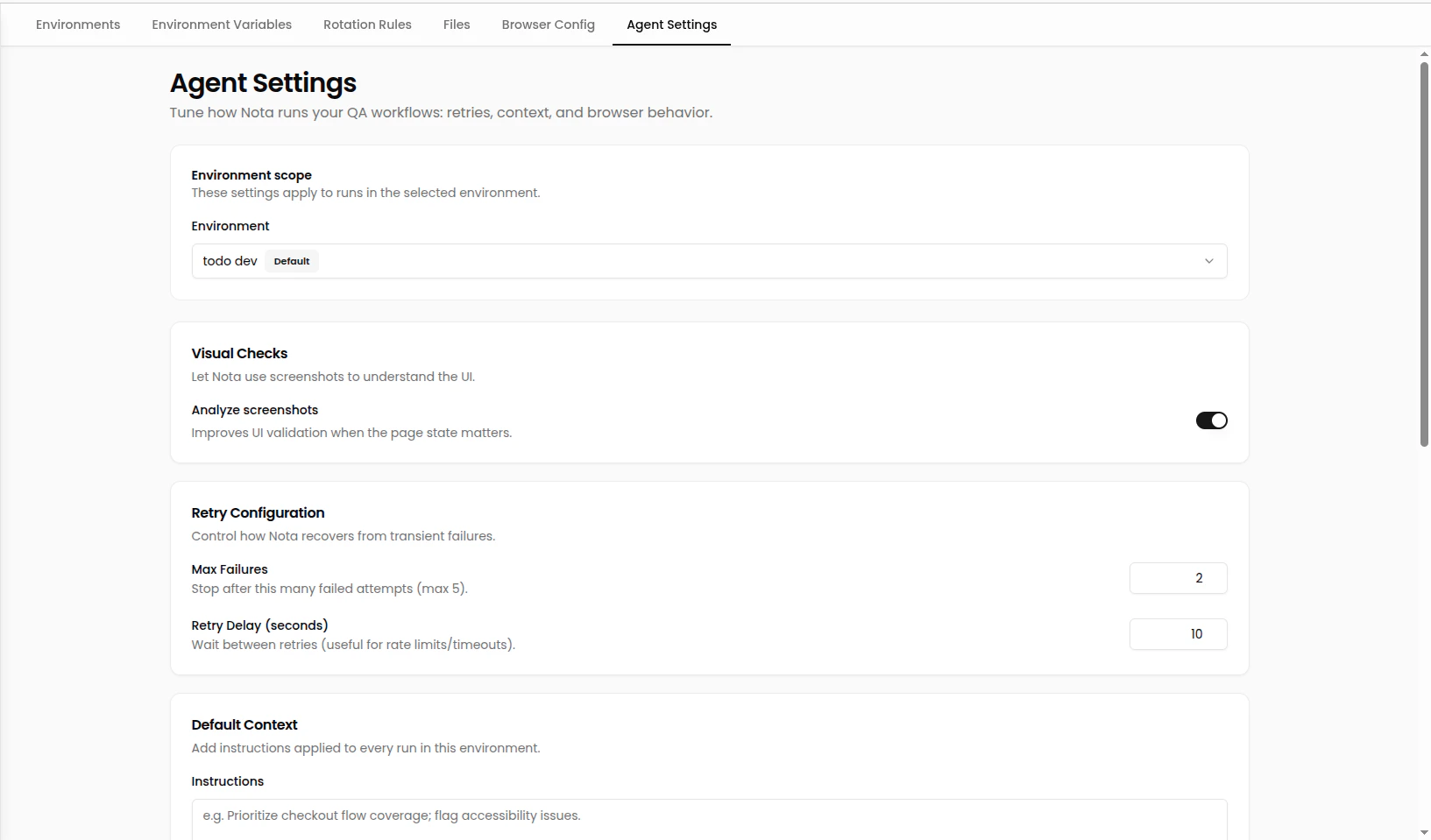
Retry Configuration
Retry Configuration defines how the agent reacts to transient failures.- Max failures — up to 5 retryable failures before the run stops.
- Retry duration — wait time between retries, up to 60 seconds.
Default Context (Optional)
Default Context is an optional instruction block that is appended to every agent run. Use it for team-wide guidance such as:- Preferred tone or execution style.
- Required guardrails (do not delete records, avoid admin actions).
- Common navigation constraints or page expectations.
Output Settings
Record GIF controls whether a lightweight GIF is captured for each run.- Default:
true - Current status: temporarily disabled (no GIF is generated)
Element Attributes
Element Attributes defines which HTML attributes the agent records when identifying UI elements. This helps with consistent element naming and selector generation. Typical attributes to include:data-testidaria-labelnameidroleplaceholderalttitle
Execution Limits
Execution Limits keep runs bounded so steps do not explode in complexity.- Max actions per step: 25