

Overview
Figma Mode connects to your design file, interprets frames, components, variants, and prototyped flows, then turns them into actionable tests. It catches broken states early by comparing intended interactions against the latest handoff artifacts.Component Mapping
Understands variants, breakpoints, and nested components for smart
selectors.
Interaction Trails
Reads prototype links to predict happy paths and edge transitions.
Inputs Required
- Figma file link with can view or higher permissions.
- Description of the flows or personas you care about.
- Optional UX notes (e.g., “animations are critical” or “dark mode parity”).
Step-by-Step
- Start Coverage Agent → Figma Mode.
- Paste the Figma link; include page or frame names if the file is large.
- Mention the use case (“new billing review component” or “mobile nav”).
- Run generation. The agent parses layers, components, and flows.
- Review the output: tests grouped by component/flow plus a gap analysis table.
- Ask for deliverables like “produce accessibility checklist” or “map to Jira epics”.
Provide the Figma Link
Figma Mode only accepts links—no file uploads. Follow the flow below to make sure the system can fetch the right design.- Click the Figma chip under the composer to open Linked sources.
- Paste the share link straight from Figma.
- Select Add. Nota fetches the design metadata, variants, and interactions, then reflects the linked source in your chat context.
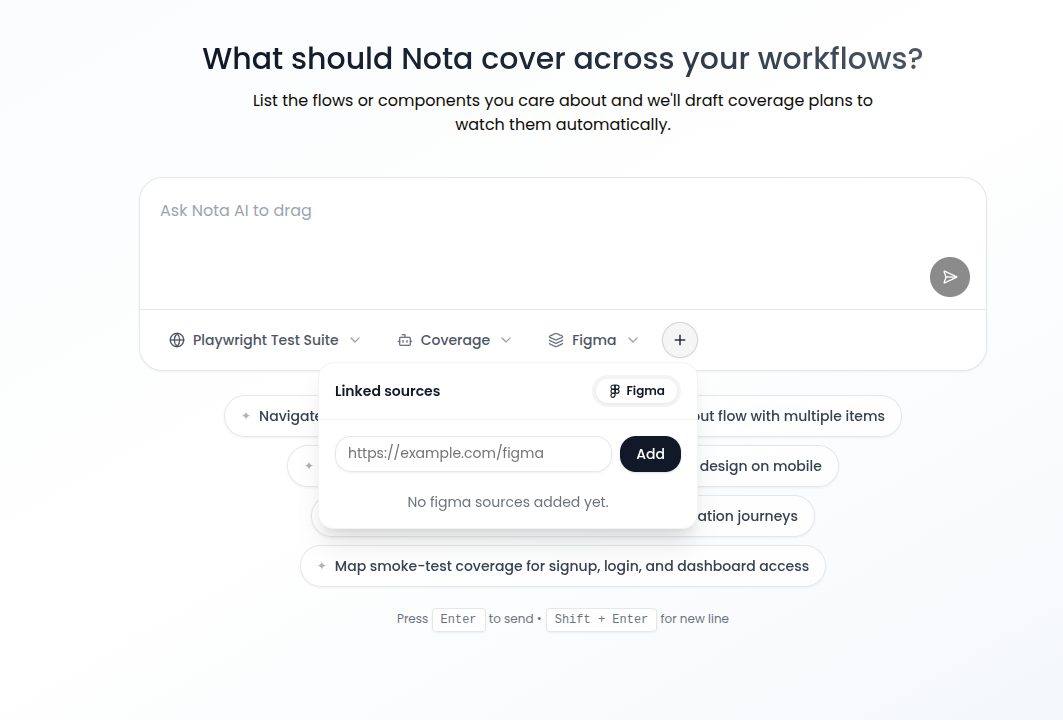
/images/new-chat/figma-link.png.
Required Access Token
Add a valid Figma personal access token in Integrations → Figma before running Figma Mode. Coverage uses that token to call the Figma API behind the scenes.- Create a Figma personal access token (profile → Settings → Personal access tokens).
- Open the Integrations page in Nota and select the Figma card.
- Paste the token into Figma Access Token and save. No redeploy needed.
When creating the token, enable scopes file_content:read, file_metadata:read, and file_version:read. If you rotate the Figma token, update it in Integrations → Figma so Coverage runs keep working.