
✨ Prompt Optimizer
When a workflow run fails, Nota AI can analyze the prompt and suggest improvements based on the failure context. The Prompt Optimizer reviews the triage report, error details, and execution history to identify what went wrong and propose an optimized version of the prompt.How It Works
- A workflow run fails and is automatically triaged into a category.
- On the artifact view, click the “Analyze Prompt” button (✦ sparkle icon) in the run metadata bar.

- The optimizer analyzes the prompt using the triage report context — error message, failing step, actual behavior, and triage reasoning.
- Results appear in the Comparison Panel between the metadata bar and the artifact tabs.
- Review the suggested changes and take action.
The Comparison Panel
The panel displays everything you need to understand and act on the optimizer’s suggestions.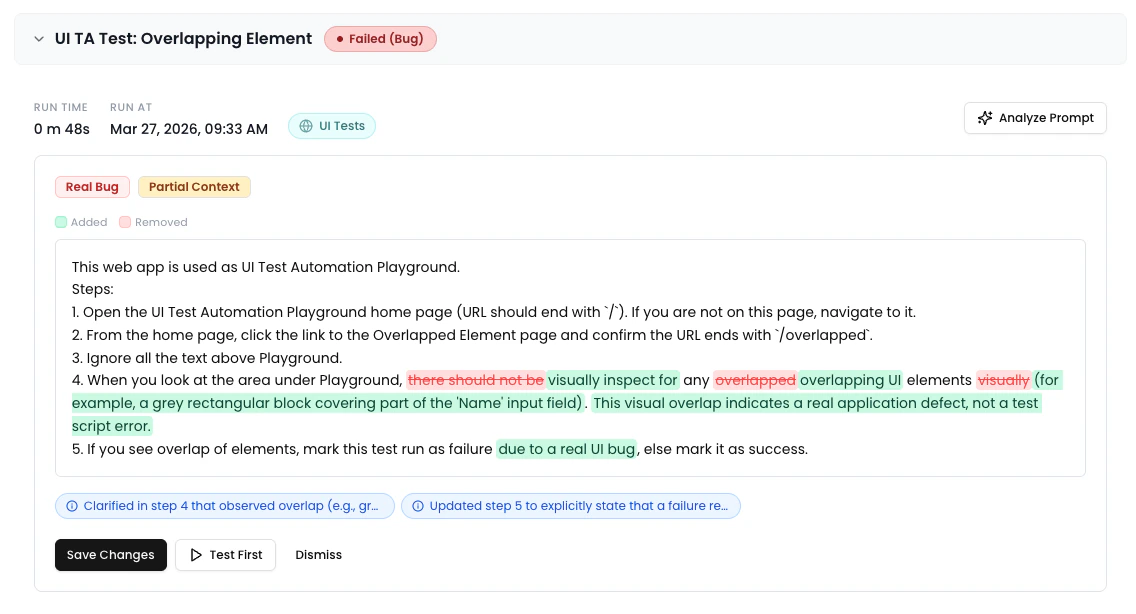
Triage Category Badge
The panel header shows which triage category the failure was classified as, using the category’s color scheme. This gives you immediate context about the type of failure.Context Quality Indicator
A badge indicating how much application context the optimizer had available for its analysis. Context is built automatically as workflow runs complete — every successful run adds to the knowledge base for that environment.💡 Backfill existing runs: If you had successful runs before application context was introduced, an admin can backfill by going to Settings → Environments, opening the environment’s action menu (⋯), and clicking “Refresh Context”. This ingests data from successful runs in the last 30 days.
Lint Warnings
Amber warning boxes highlighting prompt quality issues — such as ambiguous steps, missing assertions, or unclear element references.Inline Diff View
A word-level diff comparing the original prompt to the optimized version:- Green highlight — text that was added
- Red strikethrough — text that was removed
- Unchanged text is shown normally
Change Pills
Compact, severity-coded pills summarizing each change the optimizer made.
Hover over any pill to see a full description of the change.
Actions
The panel footer provides contextual action buttons depending on whether changes were suggested.When Changes Are Suggested
- Save Changes — Saves the optimized prompt directly to the workflow. The update takes effect immediately for future runs.
- Test First — Launches a live test run using the optimized prompt before saving. A slide-out activity panel shows real-time logs as the test executes.

- Dismiss — Closes the panel without saving any changes.
When No Changes Are Needed
If the optimizer determines the prompt looks good, it shows a green confirmation message: “Prompt looks good — no issues found.” A Run button is available to re-execute the workflow.Test Results
After clicking Test First, the result appears inline in the panel:- Test passed — Green banner with a checkmark. You can proceed to save with confidence.
- Test failed — Red banner with error details. Click “Show more” to expand long error messages, or “View Activity” to reopen the logs panel.