

What is Craftflow?
Craftflow is an intelligent workflow builder that lets you create automation workflows while watching them execute in real-time. Build, test, and refine your automation steps with instant visual feedback through a live browser preview.Live Browser Preview
Watch your steps execute in real-time as you build your workflow
Test Before Deploy
Run and validate each step individually before activation
Full Control
Pause or stop execution at any point while testing
Core Features
🎯 Build Workflows with Live Chat
Chat naturally with Craftflow to create your automation steps. Simply describe what you want to accomplish, and watch as the system builds your workflow step by step.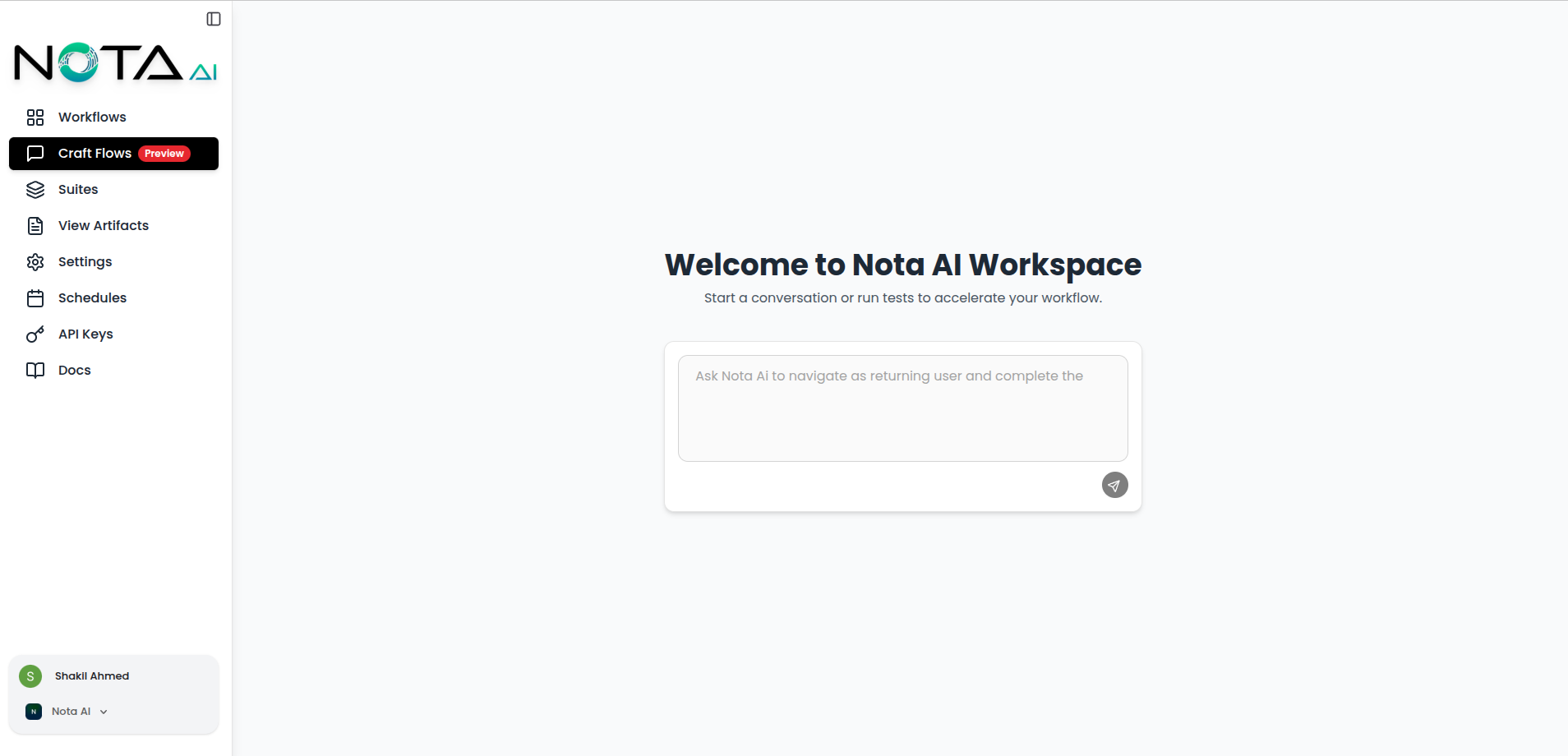
🖥️ Live Browser Preview
Every step you create can be executed instantly with a live browser preview. See exactly what happens in real-time before committing to your workflow.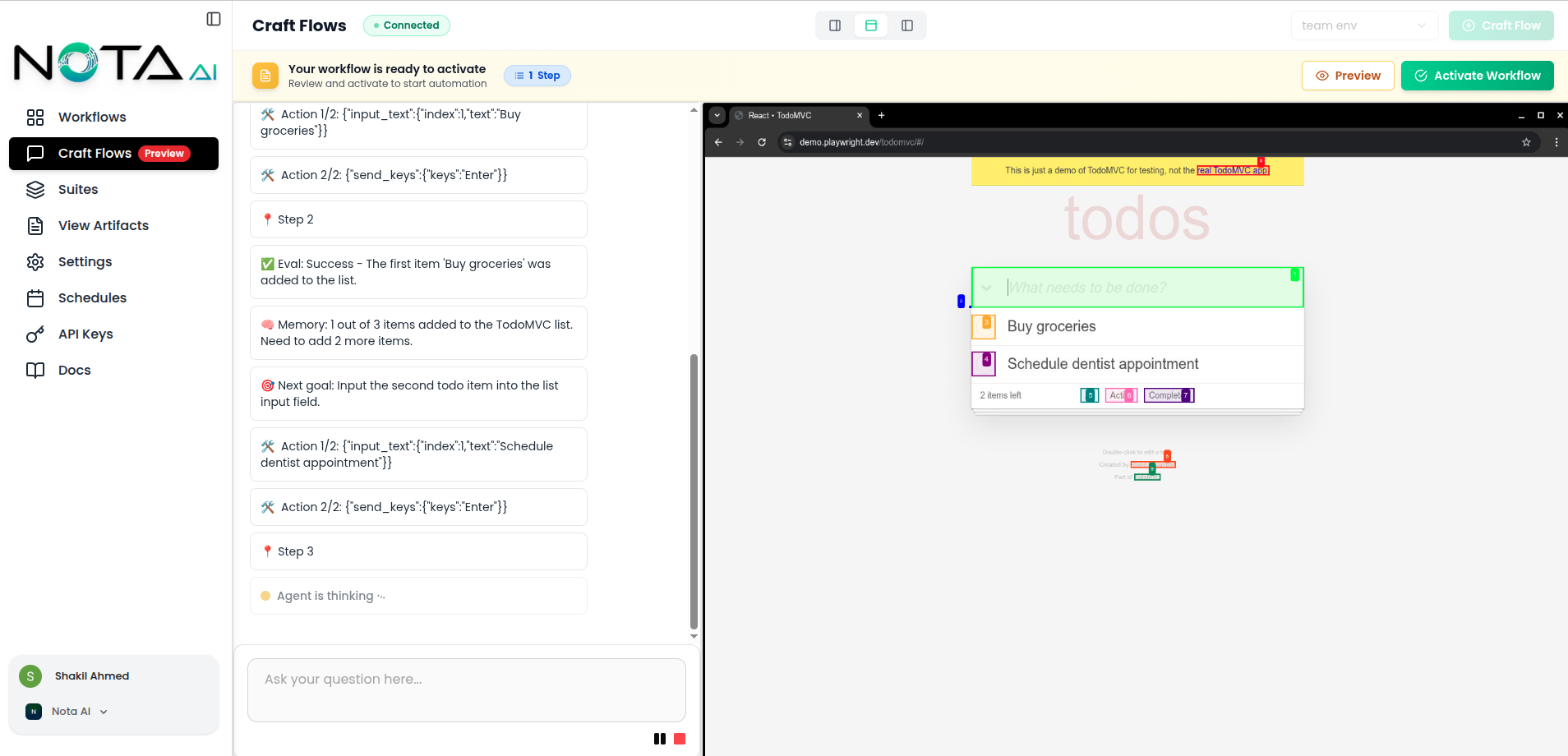
- Real-time browser interactions
- Visual feedback for each action
- Page states after each step
- Element highlighting during execution
The live preview runs in an actual browser environment, so what you see is
exactly what will happen in production.
⏯️ Execution Controls
Control how your workflow runs with simple, intuitive controls.Run
Execute your workflow step-by-step or all at once
Pause
Pause execution to inspect the current browser state
Stop
Stop the workflow and reset to the beginning
When should I use Pause?
When should I use Pause?
Use pause when you want to inspect what’s happening at a specific point in
your workflow. This is helpful for debugging or understanding page states.
What happens when I stop a workflow?
What happens when I stop a workflow?
Stopping a workflow immediately halts execution and resets the browser to
the initial state. Your steps remain saved and ready to run again.
✅ Workflow Activation
Once you’ve tested all your steps and you’re happy with the results, activate your workflow to make it production-ready. The activation process: 1. Review Your Steps All your tested steps are combined into a single workflow.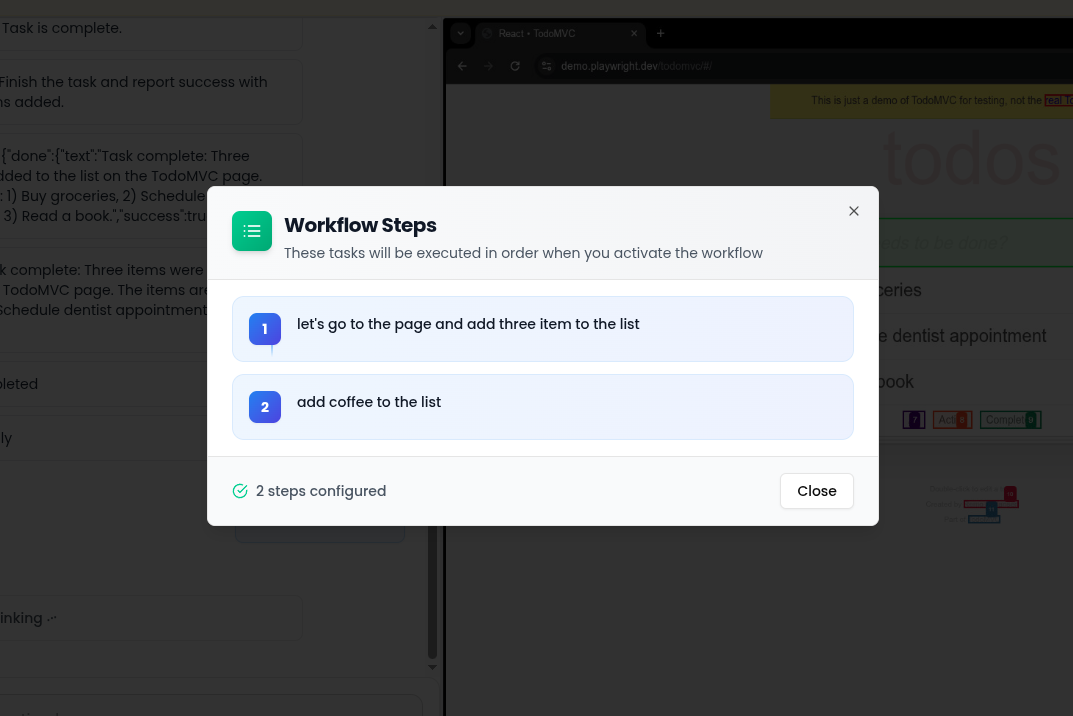
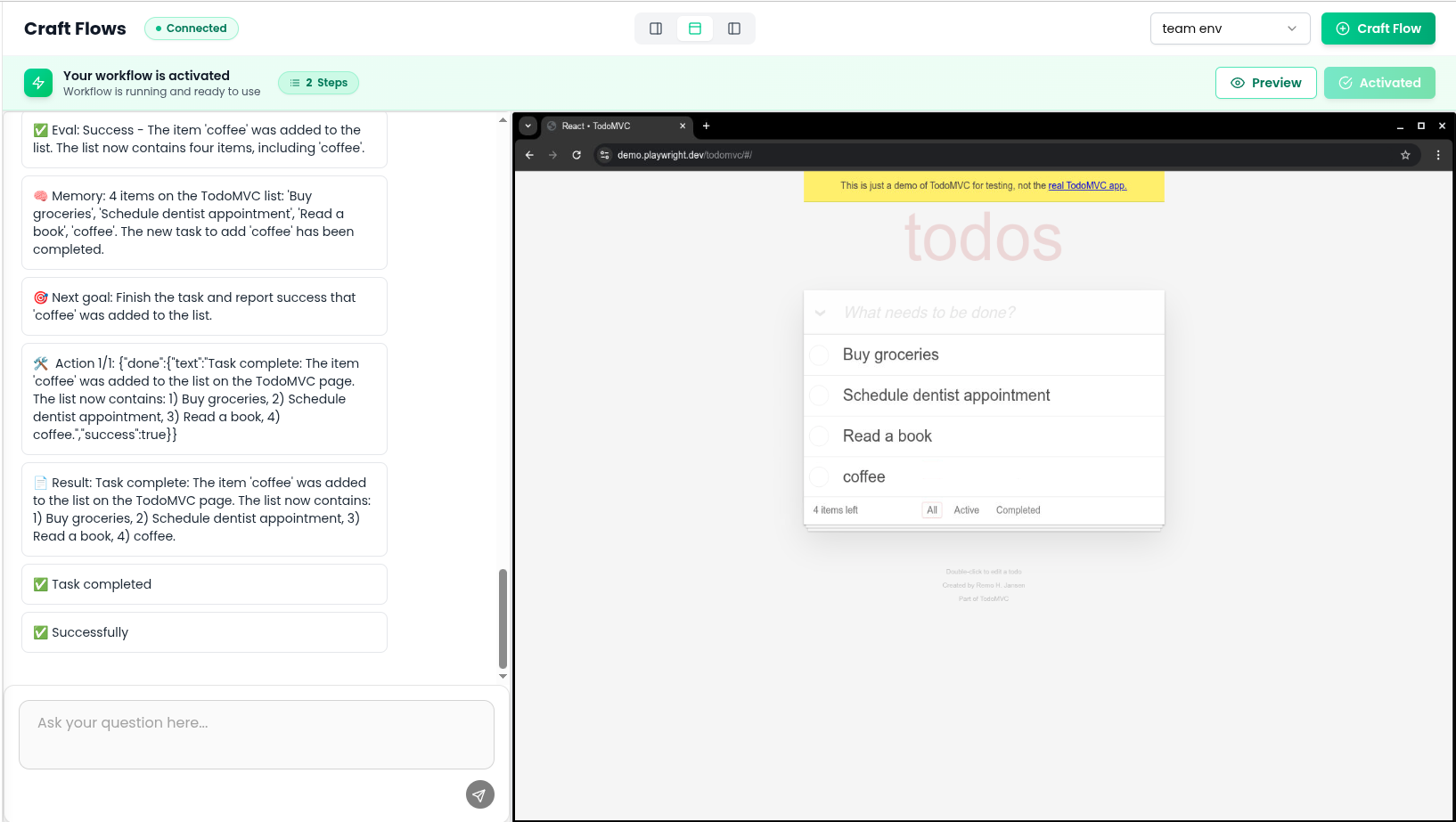

Your workflow is now active and ready to use!
How It Works
Step-by-Step Workflow Creation
1. Create Steps Through Chat Use natural language to describe each action you want to automate. Craftflow translates your instructions into executable steps. 2. Test with Live Preview Run each step individually and watch it execute in the live browser preview. Make sure everything works as expected. 3. Control Execution Use the pause and stop controls to manage your testing. Inspect page states, debug issues, and refine your steps. 4. Activate When Ready Once all steps are tested and working perfectly, activate your workflow to combine them into a complete automation.Common Use Cases
Web Automation
Automate repetitive web tasks like form filling, data entry, and navigation
Testing Workflows
Create end-to-end tests and validate user journeys
Monitoring
Monitor websites for changes or specific conditions
Tips for Success
Always test steps individually
Always test steps individually
Before activating your workflow, run each step one by one using the live preview. This helps catch issues early and ensures everything works smoothly.
Use the pause feature for debugging
Use the pause feature for debugging
When something doesn’t work as expected, use the pause button to stop
mid-execution and inspect what’s happening in the browser.
Watch the live preview carefully
Watch the live preview carefully
The live preview shows you exactly what’s happening. Look for visual cues like
element highlights, page changes, and loading states.
Refine steps before activation
Refine steps before activation
You can edit, reorder, or delete steps before activation. Use this flexibility to perfect your workflow.
Understanding Workflow States
Your workflow can be in different states depending on what you’re doing:Building
Adding and editing steps through chat
Testing
Running steps with live preview active
Paused
Execution temporarily stopped for inspection
Active
Workflow is activated and ready to run
Frequently Asked Questions
Can I edit a workflow after activation?
Can I edit a workflow after activation?
Yes! You can delete a workflow, make changes, test them with live preview.
What happens if a step fails during testing?
What happens if a step fails during testing?
The execution stops, and you’ll see an error message in the live preview. You
can then edit the step and try again.
How many steps can I add to a workflow?
How many steps can I add to a workflow?
There’s no fixed limit, but we recommend keeping workflows focused and
breaking complex automations into multiple workflows for better
maintainability.
Can I see what the browser is doing in real-time?
Can I see what the browser is doing in real-time?
Absolutely! The live browser preview shows everything happening in real-time,
including page loads, clicks, form fills, and more.
Do I need to know coding to use Craftflow?
Do I need to know coding to use Craftflow?
No! Craftflow uses natural language chat, so you can create workflows just by
describing what you want in plain English.
What's the difference between pausing and stopping?
What's the difference between pausing and stopping?
Pausing temporarily halts execution so you can inspect the current state. Stopping completely ends the execution and resets the browser.
Next Steps
Create Your First Workflow
Jump in and start building your first automation
Get Support
Need help? Our team is here for you
Ready to build powerful automations? Start creating your Craftflow workflow
today!