> ## Documentation Index
> Fetch the complete documentation index at: https://docs.trynota.ai/llms.txt
> Use this file to discover all available pages before exploring further.
# Workflow
> The Workflow page is where you create, manage, and execute test workflows for your web application. You can either build workflows manually or use AI to generate them automatically.
# 🧩 Workflow
The **Workflow** page is your command center for end-to-end test creation.\
Here, you can **manually create test workflows** or let **Nota AI generate them automatically**—all tailored to your app’s flows.
***
## ✍️ Creating a Workflow
### 1. Manual Workflow Creation
You can manually create a workflow by clicking the **"Workflow"** button.
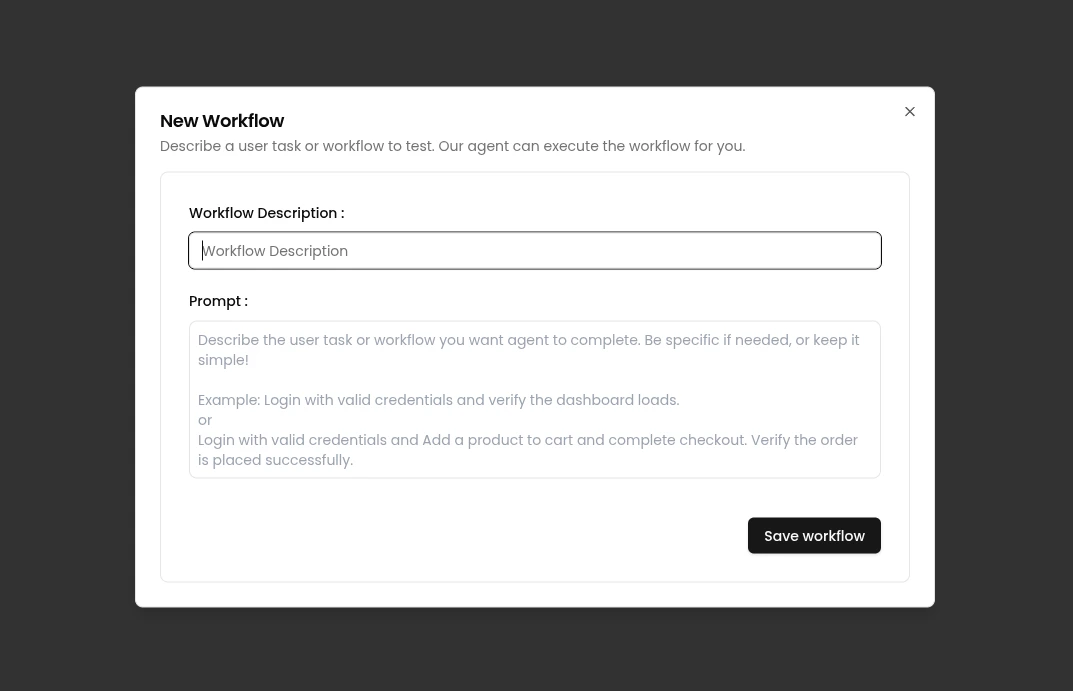 * Add a **description** to help identify the test flow.
* Optionally, define a **prompt** to guide test expectations or structure.
***
### 2. AI-Powered Workflow Generation
Let Nota AI do the heavy lifting by clicking **"Generate Coverage"**.
* Add a **description** to help identify the test flow.
* Optionally, define a **prompt** to guide test expectations or structure.
***
### 2. AI-Powered Workflow Generation
Let Nota AI do the heavy lifting by clicking **"Generate Coverage"**.
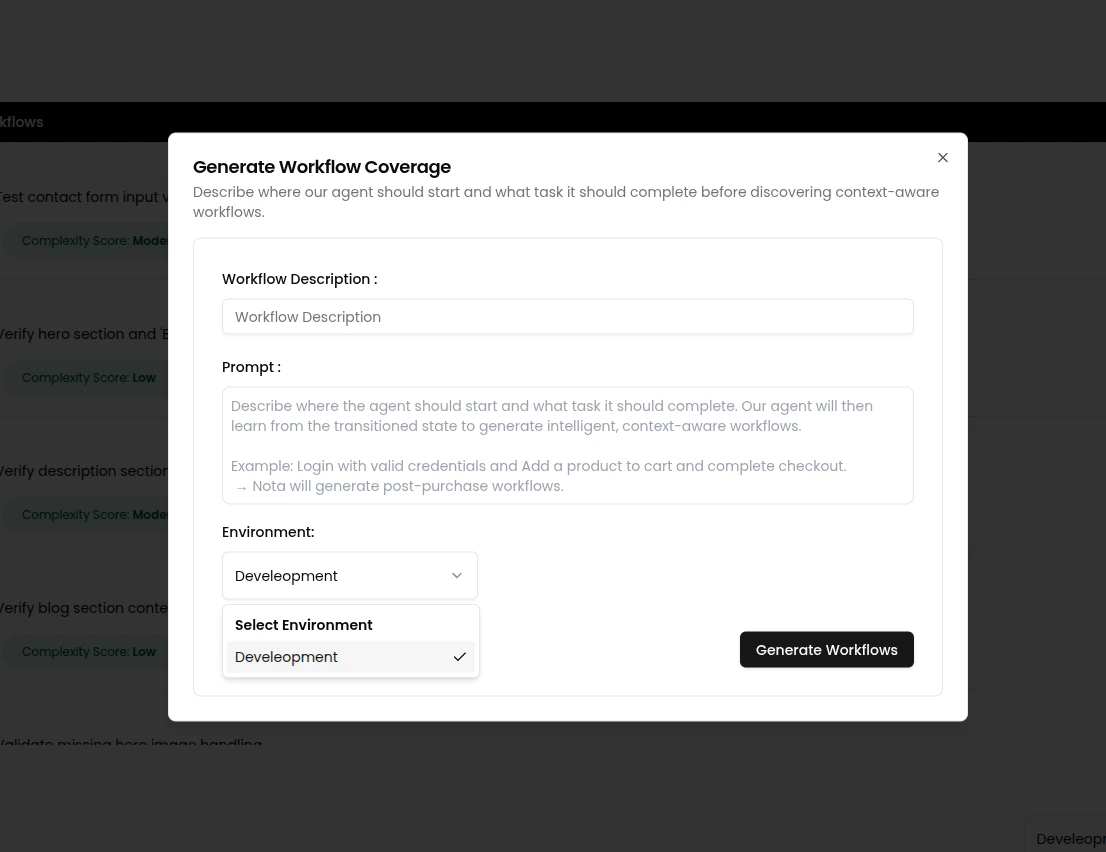 * Provide a **short description** of the scenario.\
*Example:* `"Dashboard test coverage."`
* (Optional) Add a **detailed prompt** for precise test generation.\
*Example:*\
`"Go to login page, enter valid credentials and click login. expect user lands on dashboard after successful login."`
* Select an **environment** from the dropdown — this tells Nota where the workflow should run.
* Click **"Generate Workflows"** to let the AI agent create the full test sequence for you.
* After generation, you can **view agent activity** of the workflow execution in the log view.
* Provide a **short description** of the scenario.\
*Example:* `"Dashboard test coverage."`
* (Optional) Add a **detailed prompt** for precise test generation.\
*Example:*\
`"Go to login page, enter valid credentials and click login. expect user lands on dashboard after successful login."`
* Select an **environment** from the dropdown — this tells Nota where the workflow should run.
* Click **"Generate Workflows"** to let the AI agent create the full test sequence for you.
* After generation, you can **view agent activity** of the workflow execution in the log view.
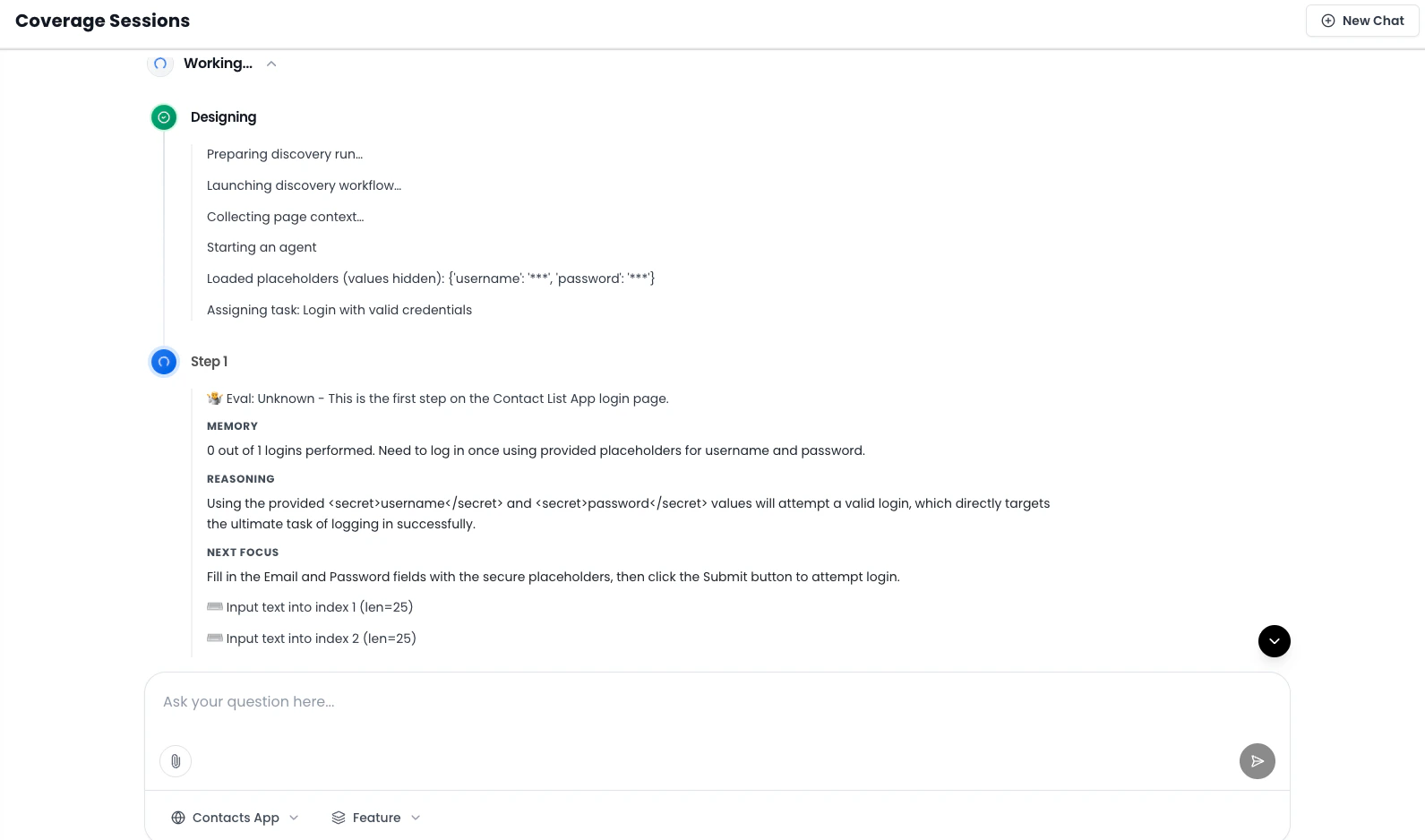 > ⚠️ **Note:** For **Generate Coverage** workflows, you cannot **pause** or **stop** the agent activity once it has started.
You’re now ready to **execute or automate** your AI-generated workflow! 🚀
## 🛠 Managing Workflows
After creating workflows, you can manage and run them directly from the **Workflow page**.
### ✅ Selecting & Executing Multiple Workflows
Select multiple workflows using the checkboxes next to each row.
> ⚠️ **Note:** For **Generate Coverage** workflows, you cannot **pause** or **stop** the agent activity once it has started.
You’re now ready to **execute or automate** your AI-generated workflow! 🚀
## 🛠 Managing Workflows
After creating workflows, you can manage and run them directly from the **Workflow page**.
### ✅ Selecting & Executing Multiple Workflows
Select multiple workflows using the checkboxes next to each row.
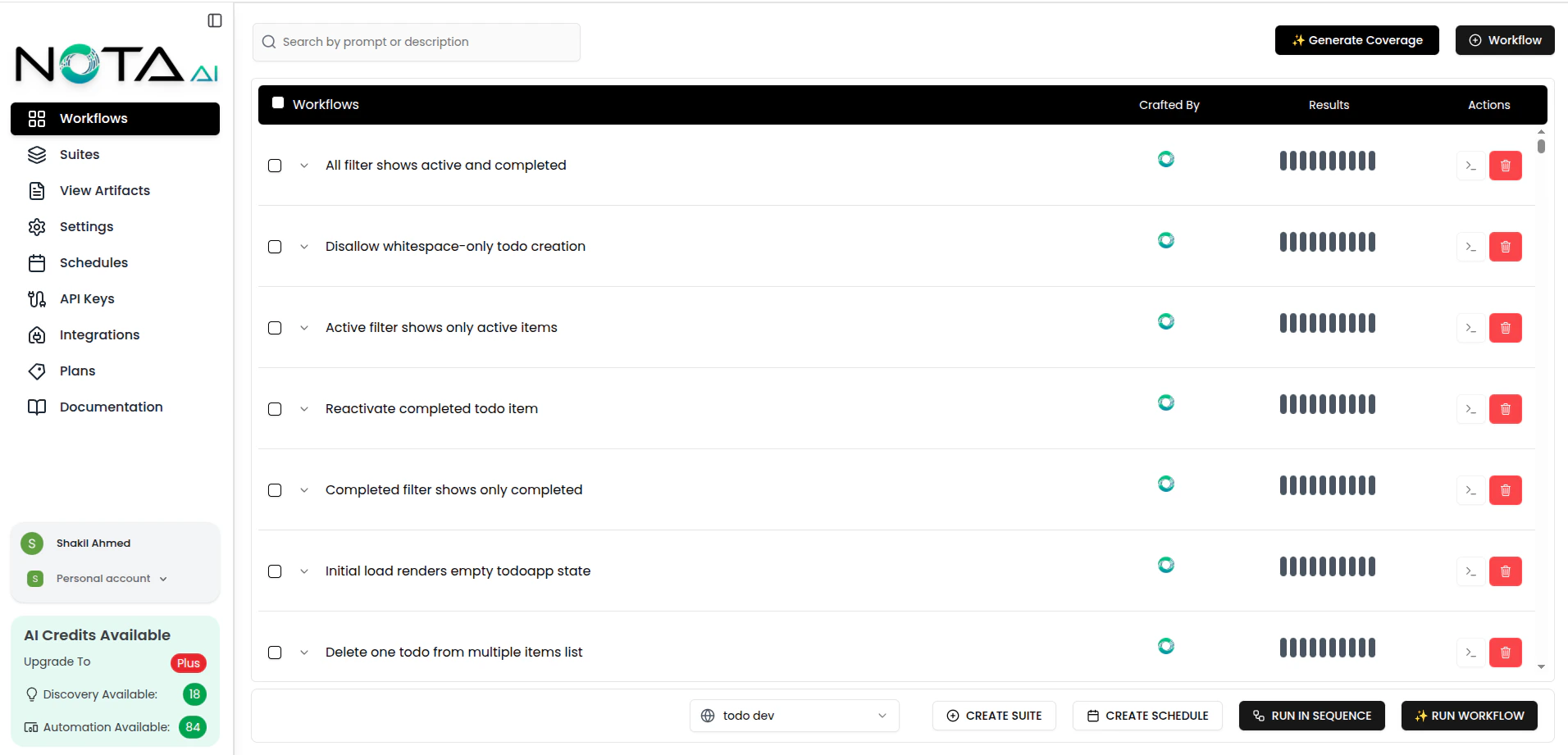 Then click **"Run Workflow"** to execute them all at once.
### 🧭 Sequential Run
**Sequential run** means the selected workflows run **one after another**, not at the same time.\
The next workflow starts **only after** the current one finishes, so execution is orderly and easier to follow.
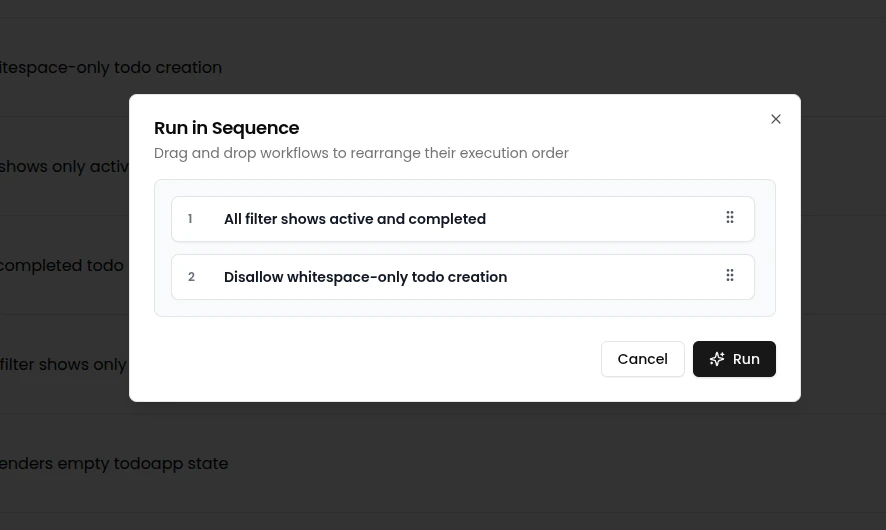
When you click **"Run Workflow"**, a **modal** opens where you can **re-arrange the order** and then start the run.
Then click **"Run Workflow"** to execute them all at once.
### 🧭 Sequential Run
**Sequential run** means the selected workflows run **one after another**, not at the same time.\
The next workflow starts **only after** the current one finishes, so execution is orderly and easier to follow.
When you click **"Run Workflow"**, a **modal** opens where you can **re-arrange the order** and then start the run.
 ***
### ✏️ Updating or 🗑 Deleting a Workflow
1. Click the workflow you want to edit.
***
### ✏️ Updating or 🗑 Deleting a Workflow
1. Click the workflow you want to edit.
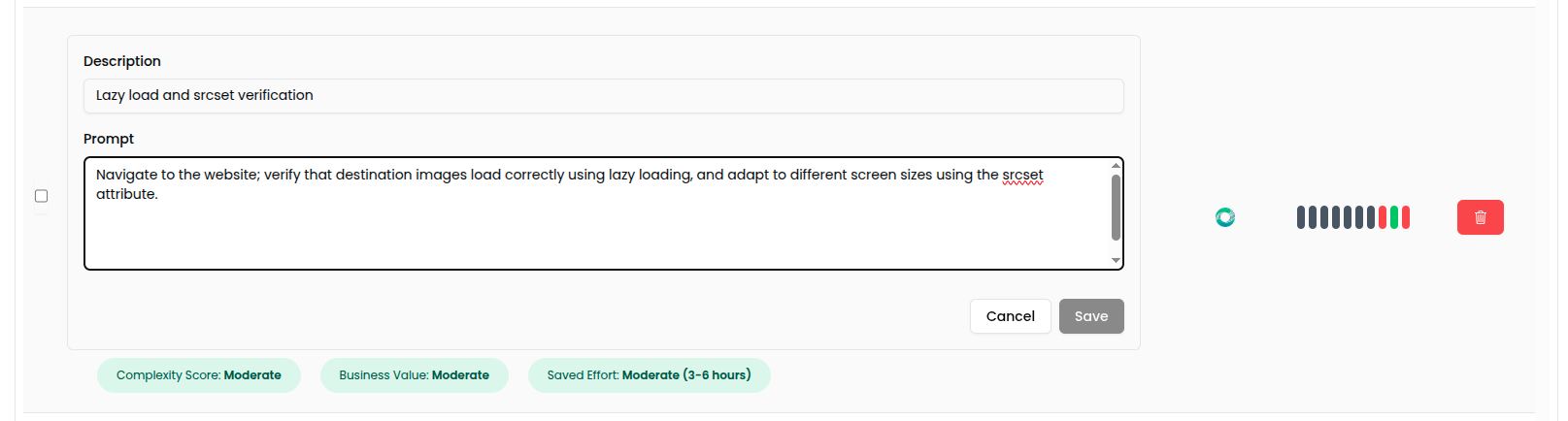 2. Modify test steps inline or using the editor panel.
3. To delete a workflow, click the **"Delete"** button.
***
# 📟 Viewing Workflow Logs
You can view real-time logs while a workflow is running directly from the **Workflows** page. This helps you track progress and troubleshoot issues easily.
***
## 🖲️ Terminal Button
* The **Terminal** button is always visible but **disabled** when no workflow is running.
* It becomes **active** only while a workflow is being executed.
* Click the button to open the **log bar** at the bottom of the screen.
***
## 📜 Active Runs
See the **Active Runs** page for live workflow logs and controls.
2. Modify test steps inline or using the editor panel.
3. To delete a workflow, click the **"Delete"** button.
***
# 📟 Viewing Workflow Logs
You can view real-time logs while a workflow is running directly from the **Workflows** page. This helps you track progress and troubleshoot issues easily.
***
## 🖲️ Terminal Button
* The **Terminal** button is always visible but **disabled** when no workflow is running.
* It becomes **active** only while a workflow is being executed.
* Click the button to open the **log bar** at the bottom of the screen.
***
## 📜 Active Runs
See the **Active Runs** page for live workflow logs and controls.