> ## Documentation Index
> Fetch the complete documentation index at: https://docs.trynota.ai/llms.txt
> Use this file to discover all available pages before exploring further.
# Triage Categories
> Understand how Nota AI automatically triages failed test runs into actionable categories.
# Triage Categories
When a workflow run fails, Nota AI automatically analyzes the failure and assigns it to one of six **triage categories**. This helps your team focus on real bugs instead of spending time manually investigating every failure. For failed runs, you can also use the [Prompt Optimizer](/view-artifacts/prompt-optimizer) to automatically analyze and improve the workflow prompt.
***
## How It Works
After a run completes with a failure, the triage agent examines the error context — including screenshots, logs, and the test steps — and classifies the failure into one of the categories below. Each classification includes a **confidence score** so you know how reliable the assessment is.
***
## The Six Categories
| Category | Color | What It Means | Recommended Action |
| ------------------------ | ------ | ---------------------------------------------------------------------------------------------- | --------------------------------------------------------- |
| **Real Bug** | Red | A genuine application defect was detected. | File a bug report with the error details and screenshots. |
| **Stale Selector** | Amber | The page loaded correctly but the target element was not found — an element reference changed. | Update the test prompt to use the new element identifier. |
| **UI Redesign** | Amber | The feature works but the navigation path or UI flow changed. | Update the test workflow steps to match the new UI flow. |
| **Environment Issue** | Purple | Infrastructure problem (network, auth, DNS) — not a test or application issue. | Retry when the environment is stable. |
| **Agent Limitation** | Gray | The agent could not perform a required browser interaction (e.g., double-click, drag). | Simplify the test step or break it into smaller actions. |
| **Precondition Not Met** | Orange | The application was not in the expected state (e.g., missing data, empty list). | Check test data setup or run order. |
***
## Confidence Tiers
Each triage assignment includes a confidence score displayed as a colored bar:
* **High** (85%+) — Green bar, solid border. The agent is confident in its classification.
* **Medium** (70–85%) — Amber bar, solid border. Likely correct but worth a quick review.
* **Low** (below 70%) — Red bar, dashed border. Manual review recommended.
***
## Where Triage Appears in the UI
### Sidebar — Workflow Group Dots
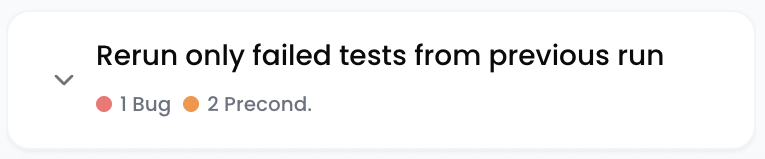
In the **Run History** sidebar, each workflow group displays small color-coded dots representing the triage breakdown of its failed runs. This gives you a quick visual summary without opening individual runs.
 ### Sidebar — Triage Category Filter
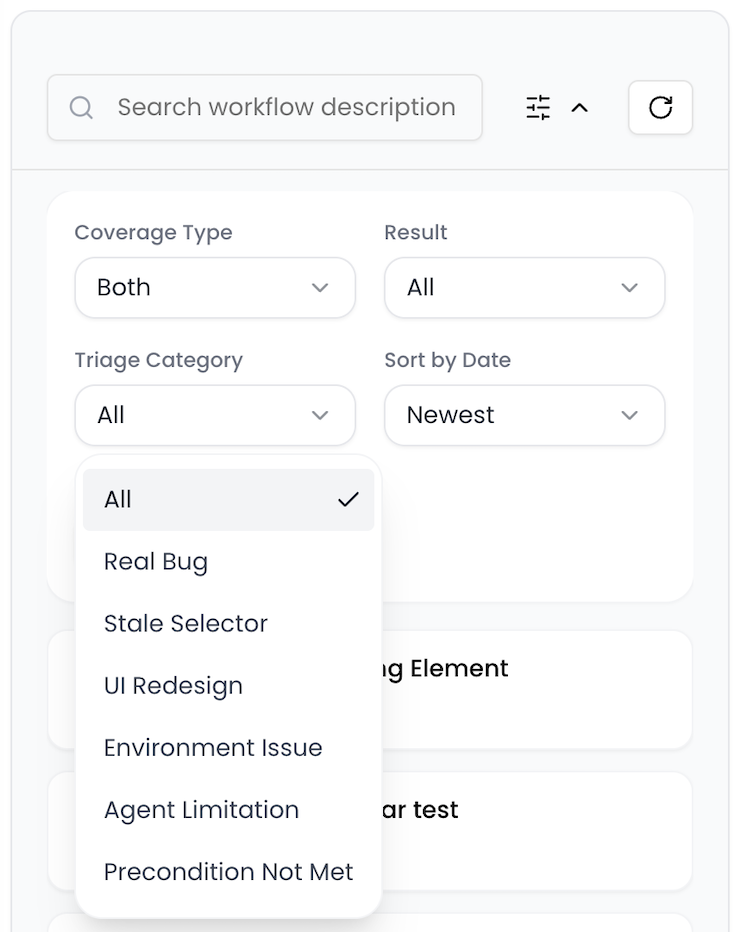
The sidebar filters panel includes a **Triage Category** dropdown. Select one or more categories to narrow down the visible runs — for example, show only "Real Bug" failures to focus on genuine defects.
### Sidebar — Triage Category Filter
The sidebar filters panel includes a **Triage Category** dropdown. Select one or more categories to narrow down the visible runs — for example, show only "Real Bug" failures to focus on genuine defects.
 ### Run Items — Triage Badge
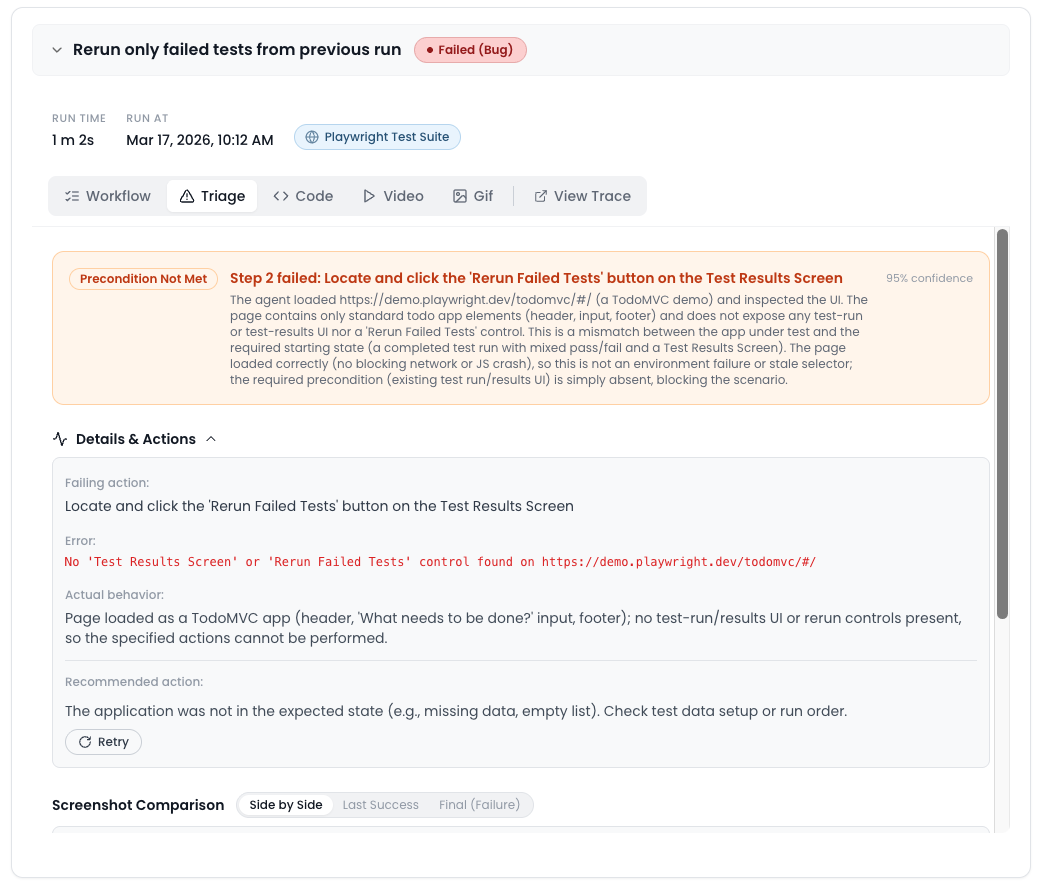
Individual run items in the artifacts list display a triage category badge with the category name and confidence indicator.
### Run Items — Triage Badge
Individual run items in the artifacts list display a triage category badge with the category name and confidence indicator.
 ### Result Status Types
Runs now have four possible result statuses that work alongside triage categories:
* **Passed** — The workflow completed successfully.
* **Failed** — The workflow failed (may have a triage category assigned).
* **Failed (Bug)** — The workflow failed and was triaged as a Real Bug.
* **Env Failure** — The workflow failed due to an environment issue.
### Notification Emails
When [scheduled runs](/schedule) complete, notification emails include a **Triage Breakdown** section showing the count of Real Bugs and Environment Failures, helping you prioritize which failures need immediate attention.
***
## Quick Actions
Some triage categories offer quick actions to help you resolve the issue faster:
* **Real Bug** — "Copy Bug Report" generates a summary with error details you can paste into your issue tracker.
* **Stale Selector** — "Accept Healed Prompt" applies the suggested prompt update to match the new element.
* **Environment Issue** / **Precondition Not Met** — "Retry" re-runs the workflow.
### Analyze Prompt
All failed runs — regardless of triage category — display an **"Analyze Prompt"** button (✦ sparkle icon) in the run metadata bar. Clicking it launches the [Prompt Optimizer](/view-artifacts/prompt-optimizer), which reviews the workflow prompt in light of the failure context and suggests improvements.
### Result Status Types
Runs now have four possible result statuses that work alongside triage categories:
* **Passed** — The workflow completed successfully.
* **Failed** — The workflow failed (may have a triage category assigned).
* **Failed (Bug)** — The workflow failed and was triaged as a Real Bug.
* **Env Failure** — The workflow failed due to an environment issue.
### Notification Emails
When [scheduled runs](/schedule) complete, notification emails include a **Triage Breakdown** section showing the count of Real Bugs and Environment Failures, helping you prioritize which failures need immediate attention.
***
## Quick Actions
Some triage categories offer quick actions to help you resolve the issue faster:
* **Real Bug** — "Copy Bug Report" generates a summary with error details you can paste into your issue tracker.
* **Stale Selector** — "Accept Healed Prompt" applies the suggested prompt update to match the new element.
* **Environment Issue** / **Precondition Not Met** — "Retry" re-runs the workflow.
### Analyze Prompt
All failed runs — regardless of triage category — display an **"Analyze Prompt"** button (✦ sparkle icon) in the run metadata bar. Clicking it launches the [Prompt Optimizer](/view-artifacts/prompt-optimizer), which reviews the workflow prompt in light of the failure context and suggests improvements.
 > 💡 The Prompt Optimizer is especially useful for **Agent Limitation** and **Precondition Not Met** failures, where rewording or restructuring the prompt can resolve the issue without code changes.