> ## Documentation Index
> Fetch the complete documentation index at: https://docs.trynota.ai/llms.txt
> Use this file to discover all available pages before exploring further.
# Active Runs
> Monitor workflows that are currently executing.
# ▶️ Active Runs
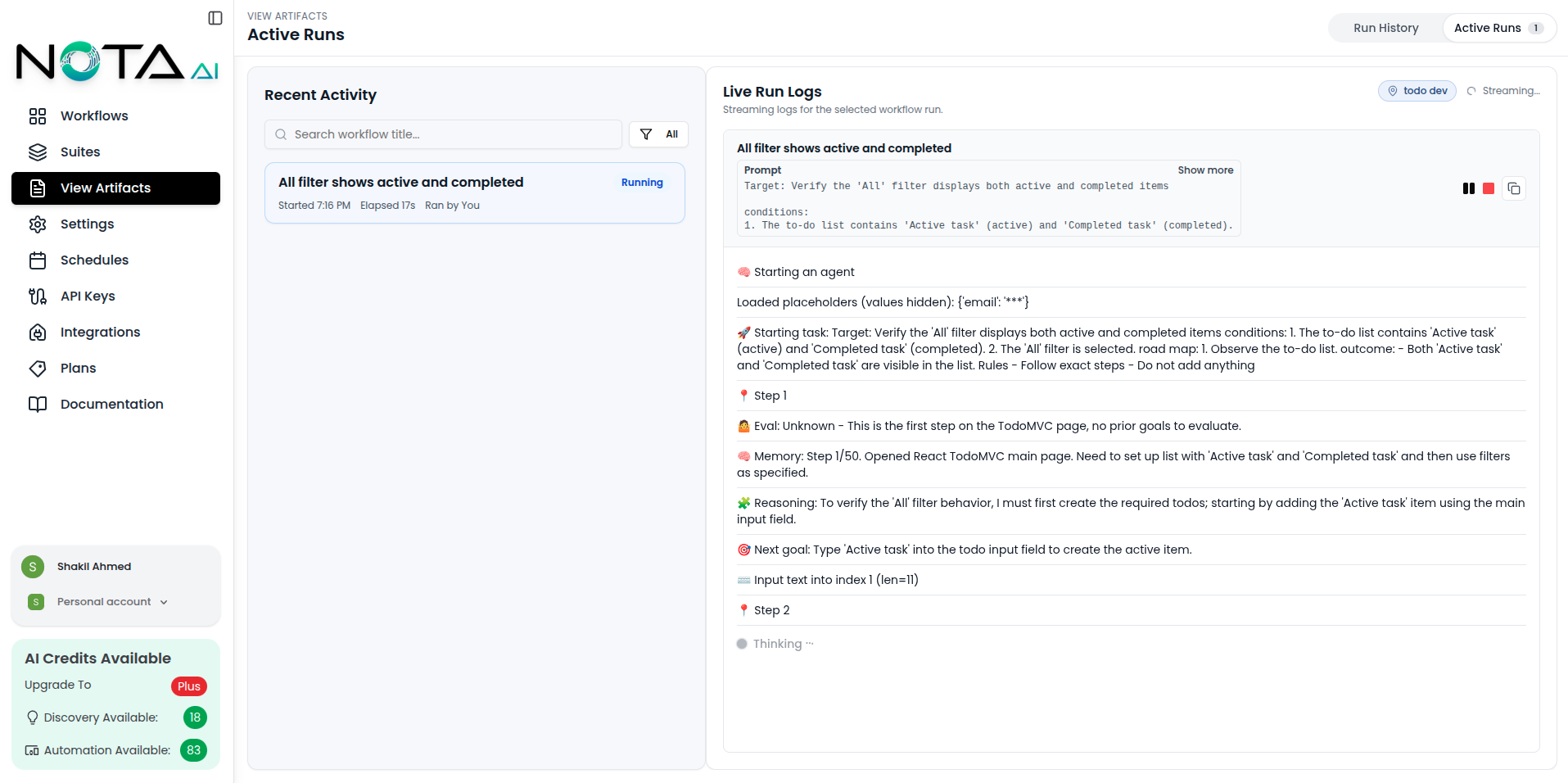
After clicking the Terminal button, a **log bar** slides up at the bottom. It shows the live output of the workflow.
 ## ✅ What You Can Do
* 🔄 **See real-time logs** as the workflow runs.
* ⬇️ **Auto-scrolls** to show the latest log line.
* ❌ **Close** the log bar anytime without stopping the workflow.
* ⏯️ **Pause/Play logs** using the Pause and Play buttons to temporarily stop or resume log updates.
* 🛑 **Stop agent** with the Stop button to halt the agent's execution immediately.
> ✅ Use the log bar to stay informed, debug faster, and download logs for later review.
***
## 🌍 Environment Badge
The active run panel displays an **Environment Badge** in the header, showing which environment the workflow is running against.
* A **globe icon** with the environment name
* A **unique color** dynamically generated from the environment name
* **Clickable** — when the environment has a URL configured, clicking the badge opens the live environment in a new tab
## ✅ What You Can Do
* 🔄 **See real-time logs** as the workflow runs.
* ⬇️ **Auto-scrolls** to show the latest log line.
* ❌ **Close** the log bar anytime without stopping the workflow.
* ⏯️ **Pause/Play logs** using the Pause and Play buttons to temporarily stop or resume log updates.
* 🛑 **Stop agent** with the Stop button to halt the agent's execution immediately.
> ✅ Use the log bar to stay informed, debug faster, and download logs for later review.
***
## 🌍 Environment Badge
The active run panel displays an **Environment Badge** in the header, showing which environment the workflow is running against.
* A **globe icon** with the environment name
* A **unique color** dynamically generated from the environment name
* **Clickable** — when the environment has a URL configured, clicking the badge opens the live environment in a new tab