> ## Documentation Index
> Fetch the complete documentation index at: https://docs.trynota.ai/llms.txt
> Use this file to discover all available pages before exploring further.
# Files
> Upload and manage files that Nota can reuse during automated workflows.
# 📁 Files
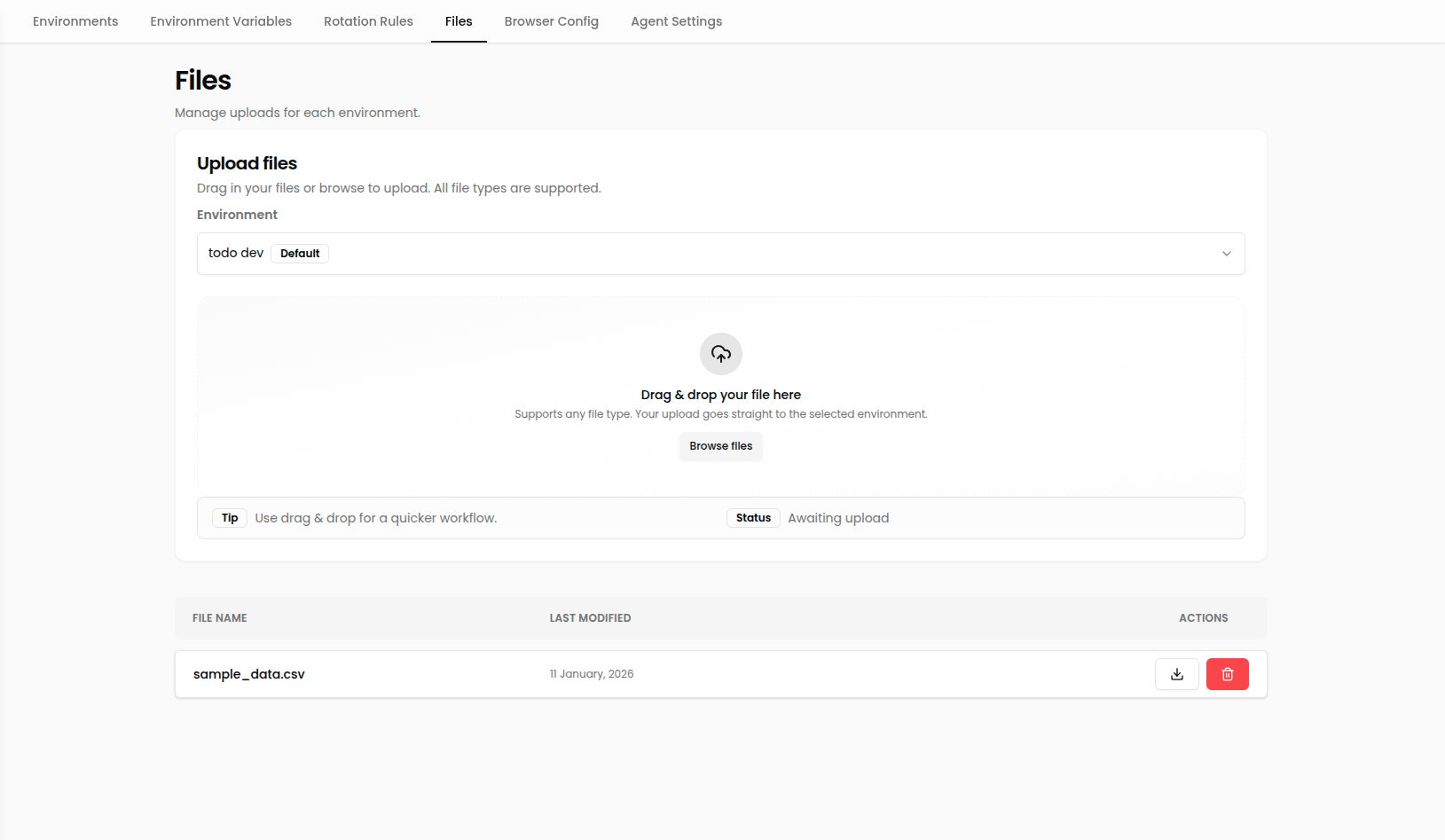
The Files section lets you upload assets—PDFs, spreadsheets, images, JSON fixtures—that your workflows need while running.\
Store them once, reference them in prompts, and let the Nota agent handle uploads automatically.
***
## Environment-Aware Storage
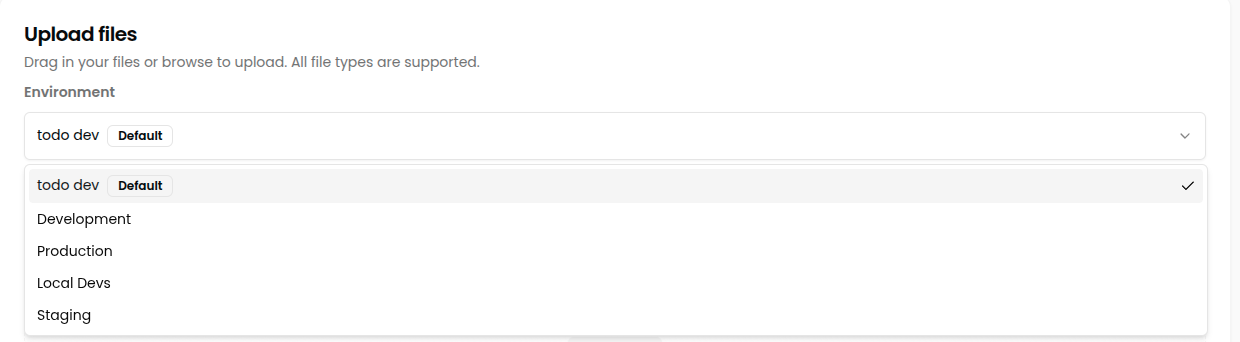
Each environment maintains its own file library, so you can tailor uploads to the data your staging vs. production tests require.
* **Development** – Local or internal testing assets.
* **Staging** – Pre-release simulations.
* **Production** – Live automation scenarios.
> ⚠️ Uploads in one environment do not spill into others. Keep names consistent if you want the same file across multiple environments.
***
## Upload Files
1. Navigate to **Settings → Files**.
2. Select the **Environment** you want to manage.
3. Upload one or more files using the interface.
4. Reference the exact filename in your workflow prompt so the agent knows what to attach.
 ***
## Example Scenario
Testing an upload form—like [Formy’s file upload demo](https://formy-project.herokuapp.com/file-upload)—is simple:
1. Upload `placeholder.json` to the right environment in **Settings → Files**.
2. Add a step to your workflow prompt:
```text theme={null}
Go to https://formy-project.herokuapp.com/file-upload. Upload the file named "placeholder.json" using the file input and click submit.
```
Nota handles the upload automatically during execution.
***
## Benefits
* **No bundling required:** Keep large fixtures out of your workflow definitions.
* **Consistent across runs:** Every execution pulls the same file unless you replace it.
* **Supports multiple environments:** Tailor assets per environment without renaming files.
***
## Example Scenario
Testing an upload form—like [Formy’s file upload demo](https://formy-project.herokuapp.com/file-upload)—is simple:
1. Upload `placeholder.json` to the right environment in **Settings → Files**.
2. Add a step to your workflow prompt:
```text theme={null}
Go to https://formy-project.herokuapp.com/file-upload. Upload the file named "placeholder.json" using the file input and click submit.
```
Nota handles the upload automatically during execution.
***
## Benefits
* **No bundling required:** Keep large fixtures out of your workflow definitions.
* **Consistent across runs:** Every execution pulls the same file unless you replace it.
* **Supports multiple environments:** Tailor assets per environment without renaming files.