> ## Documentation Index
> Fetch the complete documentation index at: https://docs.trynota.ai/llms.txt
> Use this file to discover all available pages before exploring further.
# Craft Agent
> Create and test automation workflows in real-time with live browser preview
## What is Craft Agent
Craft Agent is an intelligent workflow builder that lets you **create automation workflows while watching them execute in real-time**. Build, test, and refine your automation steps with instant visual feedback through a live browser preview.
Watch your steps execute in real-time as you build your workflow
Run and validate each step individually before activation
Pause or stop execution at any point while testing
***
## Core Features
### 🎯 Build Workflows with Live Chat
Chat naturally with the Craft Agent to create your automation steps. Simply describe what you want to accomplish, and watch as the system builds your workflow step by step.
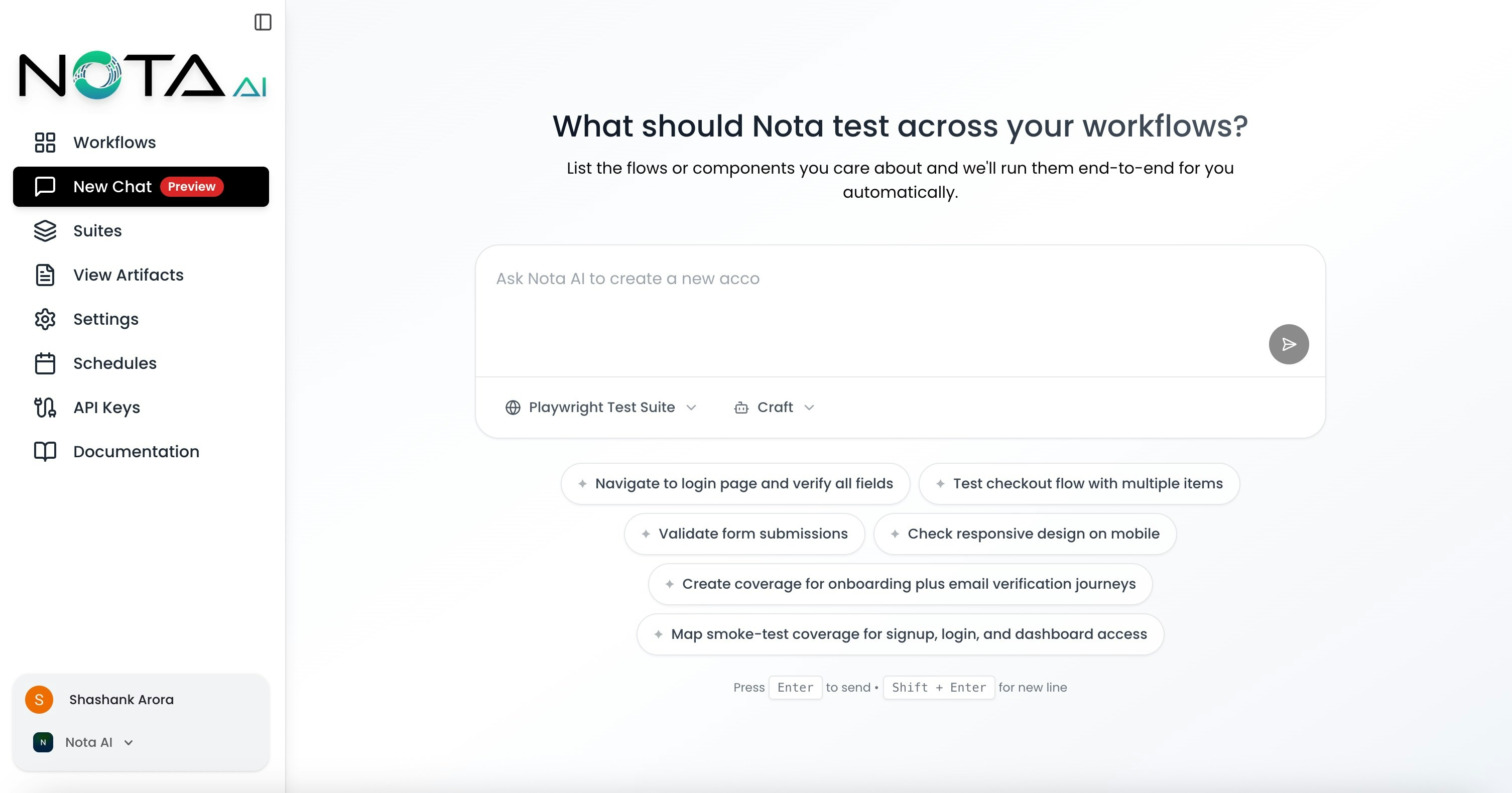 Try saying things like "Navigate to the login page" or "Click the submit
button" - the Craft Agent understands natural language.
***
### 🖥️ Live Browser Preview
Every step you create can be executed instantly with a live browser preview. See exactly what happens in real-time before committing to your workflow.
Try saying things like "Navigate to the login page" or "Click the submit
button" - the Craft Agent understands natural language.
***
### 🖥️ Live Browser Preview
Every step you create can be executed instantly with a live browser preview. See exactly what happens in real-time before committing to your workflow.
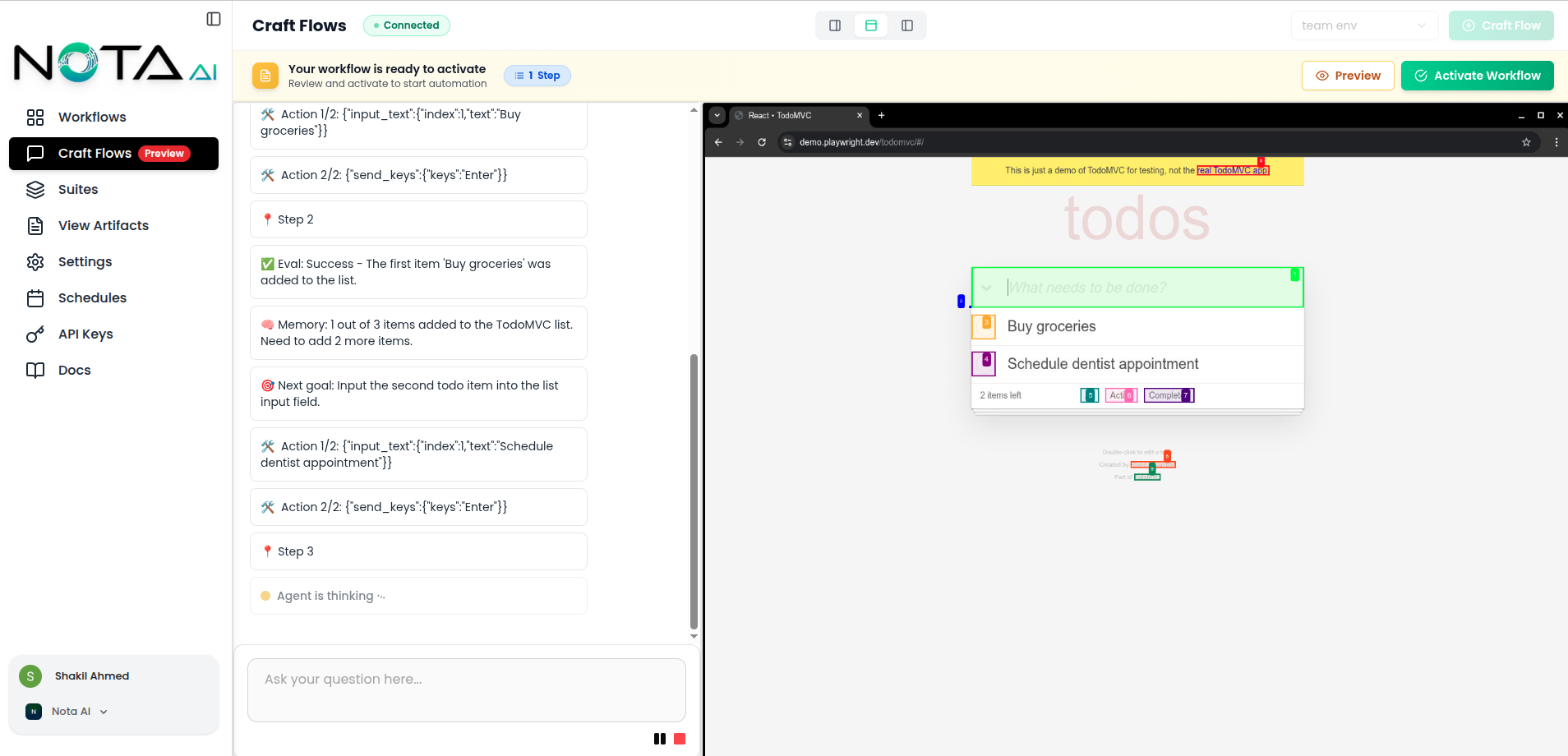 **What you'll see:**
* Real-time browser interactions
* Visual feedback for each action
* Page states after each step
* Element highlighting during execution
The live preview runs in an actual browser environment, so what you see is
exactly what will happen in production.
***
### ⏯️ Execution Controls
Control how your workflow runs with simple, intuitive controls.
Execute your workflow step-by-step or all at once
Pause execution to inspect the current browser state
Stop the workflow and reset to the beginning
Use pause when you want to inspect what's happening at a specific point in
your workflow. This is helpful for debugging or understanding page states.
Stopping a workflow immediately halts execution and resets the browser to
the initial state. Your steps remain saved and ready to run again.
***
### ✅ Workflow Activation
Once you've tested all your steps and you're happy with the results, activate your workflow to make it production-ready.
**The activation process:**
**1. Review Your Steps**
All your tested steps are combined into a single workflow.
**What you'll see:**
* Real-time browser interactions
* Visual feedback for each action
* Page states after each step
* Element highlighting during execution
The live preview runs in an actual browser environment, so what you see is
exactly what will happen in production.
***
### ⏯️ Execution Controls
Control how your workflow runs with simple, intuitive controls.
Execute your workflow step-by-step or all at once
Pause execution to inspect the current browser state
Stop the workflow and reset to the beginning
Use pause when you want to inspect what's happening at a specific point in
your workflow. This is helpful for debugging or understanding page states.
Stopping a workflow immediately halts execution and resets the browser to
the initial state. Your steps remain saved and ready to run again.
***
### ✅ Workflow Activation
Once you've tested all your steps and you're happy with the results, activate your workflow to make it production-ready.
**The activation process:**
**1. Review Your Steps**
All your tested steps are combined into a single workflow.
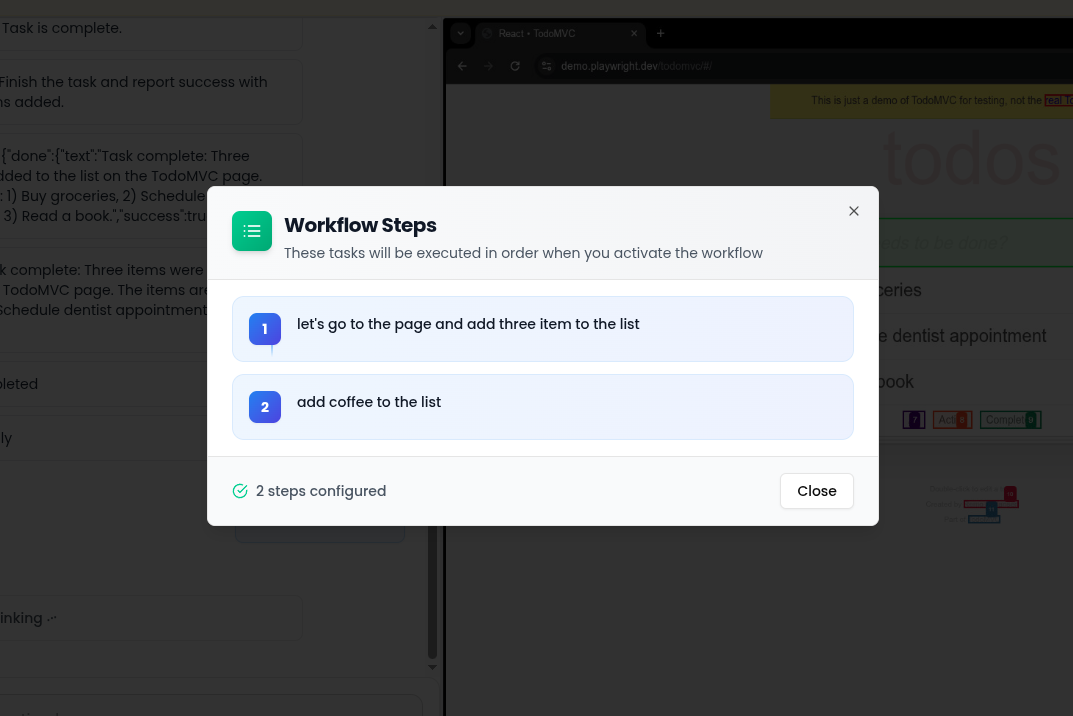 **2. Activate the Workflow**
Click the activate button to make your workflow live.
**2. Activate the Workflow**
Click the activate button to make your workflow live.
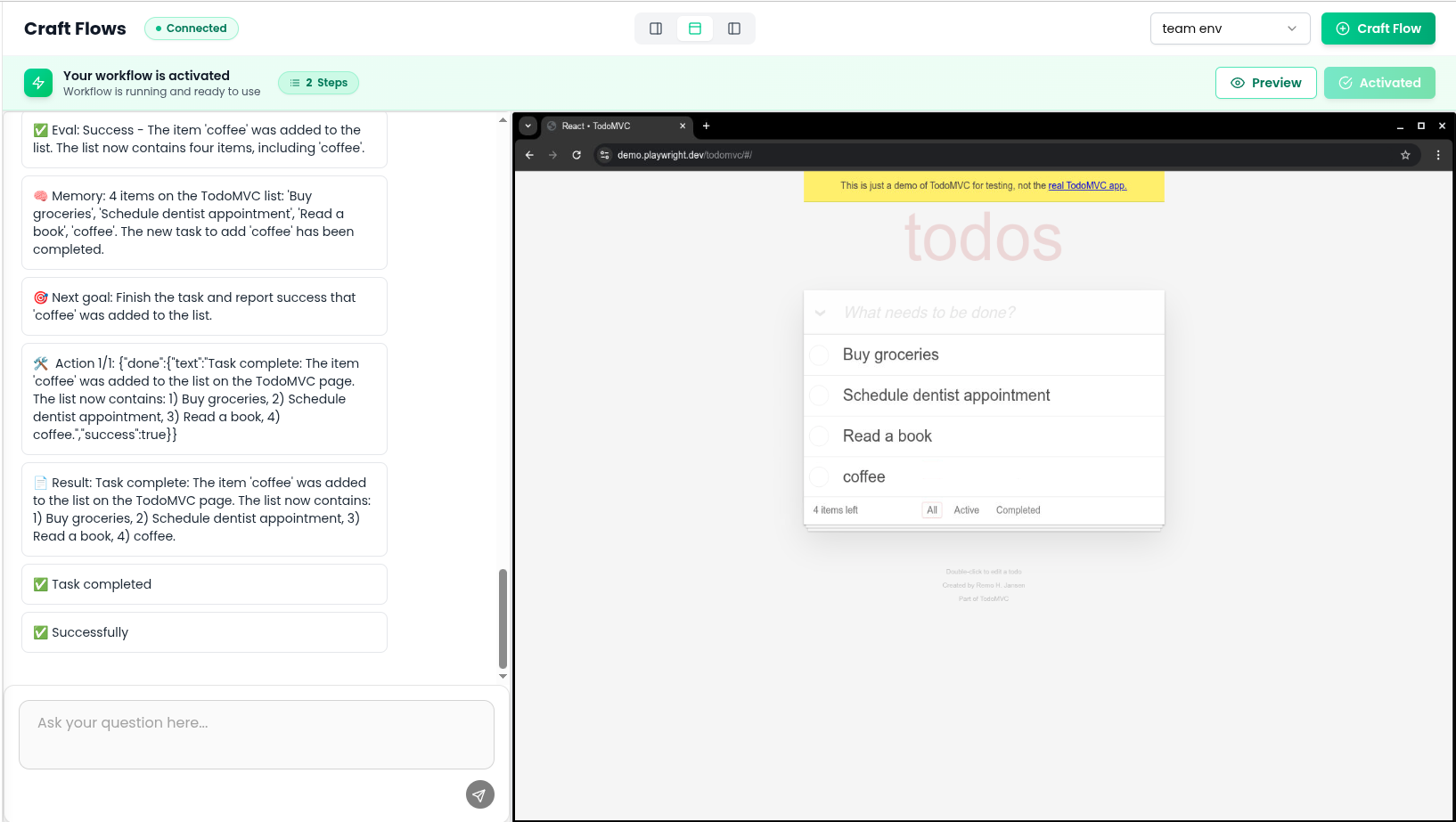 **3. Workflow is Ready**
Your activated workflow can now run automatically.
**3. Workflow is Ready**
Your activated workflow can now run automatically.
 Your workflow is now active and ready to use!
Make sure to test all steps with the live preview before activating. Once
activated, the workflow will run automatically.
***
## How It Works
### Step-by-Step Workflow Creation
**1. Create Steps Through Chat**
Use natural language to describe each action you want to automate. Craft Agent translates your instructions into executable steps.
**2. Test with Live Preview**
Run each step individually and watch it execute in the live browser preview. Make sure everything works as expected.
**3. Control Execution**
Use the pause and stop controls to manage your testing. Inspect page states, debug issues, and refine your steps.
**4. Activate When Ready**
Once all steps are tested and working perfectly, activate your workflow to combine them into a complete automation.
***
## Common Use Cases
Automate repetitive web tasks like form filling, data entry, and navigation
Create end-to-end tests and validate user journeys
Monitor websites for changes or specific conditions
***
## Tips for Success
Before activating your workflow, run each step one by one using the live preview. This helps catch issues early and ensures everything works smoothly.
When something doesn't work as expected, use the pause button to stop
mid-execution and inspect what's happening in the browser.
The live preview shows you exactly what's happening. Look for visual cues like
element highlights, page changes, and loading states.
You can edit, reorder, or delete steps before activation. Use this flexibility to perfect your workflow.
***
## Understanding Workflow States
Your workflow can be in different states depending on what you're doing:
Adding and editing steps through chat
Running steps with live preview active
Execution temporarily stopped for inspection
Workflow is activated and ready to run
***
## Frequently Asked Questions
Yes. Edit steps, retest with live preview, then reactivate when ready.
The execution stops, and you'll see an error message in the live preview. You
can then edit the step and try again.
There's no fixed limit, but we recommend keeping workflows focused and
breaking complex automations into multiple workflows for better
maintainability.
Absolutely! The live browser preview shows everything happening in real-time,
including page loads, clicks, form fills, and more.
No! The Craft Agent uses natural language chat, so you can create workflows just by
describing what you want in plain English.
Pausing temporarily halts execution so you can inspect the current state. Stopping completely ends the execution and resets the browser.
***
## Next Steps
Jump in and start building your first automation
Need help? Our team is here for you
Ready to build powerful automations? Start creating your Craft Agent workflow
today!
Your workflow is now active and ready to use!
Make sure to test all steps with the live preview before activating. Once
activated, the workflow will run automatically.
***
## How It Works
### Step-by-Step Workflow Creation
**1. Create Steps Through Chat**
Use natural language to describe each action you want to automate. Craft Agent translates your instructions into executable steps.
**2. Test with Live Preview**
Run each step individually and watch it execute in the live browser preview. Make sure everything works as expected.
**3. Control Execution**
Use the pause and stop controls to manage your testing. Inspect page states, debug issues, and refine your steps.
**4. Activate When Ready**
Once all steps are tested and working perfectly, activate your workflow to combine them into a complete automation.
***
## Common Use Cases
Automate repetitive web tasks like form filling, data entry, and navigation
Create end-to-end tests and validate user journeys
Monitor websites for changes or specific conditions
***
## Tips for Success
Before activating your workflow, run each step one by one using the live preview. This helps catch issues early and ensures everything works smoothly.
When something doesn't work as expected, use the pause button to stop
mid-execution and inspect what's happening in the browser.
The live preview shows you exactly what's happening. Look for visual cues like
element highlights, page changes, and loading states.
You can edit, reorder, or delete steps before activation. Use this flexibility to perfect your workflow.
***
## Understanding Workflow States
Your workflow can be in different states depending on what you're doing:
Adding and editing steps through chat
Running steps with live preview active
Execution temporarily stopped for inspection
Workflow is activated and ready to run
***
## Frequently Asked Questions
Yes. Edit steps, retest with live preview, then reactivate when ready.
The execution stops, and you'll see an error message in the live preview. You
can then edit the step and try again.
There's no fixed limit, but we recommend keeping workflows focused and
breaking complex automations into multiple workflows for better
maintainability.
Absolutely! The live browser preview shows everything happening in real-time,
including page loads, clicks, form fills, and more.
No! The Craft Agent uses natural language chat, so you can create workflows just by
describing what you want in plain English.
Pausing temporarily halts execution so you can inspect the current state. Stopping completely ends the execution and resets the browser.
***
## Next Steps
Jump in and start building your first automation
Need help? Our team is here for you
Ready to build powerful automations? Start creating your Craft Agent workflow
today!